

Computer Use Architecture Deep Dive
A deep dive into Computer Use: MCP tool definitions, native macOS/Linux capture helpers, the cross-platform Python input bridge, and the 9-layer security gates.
Patch Environment · Layered Architecture · MCP Tool Layer · Security Gates · Hybrid Bridge · Interaction Loop · Source File Index
1. Patch Environment Overview
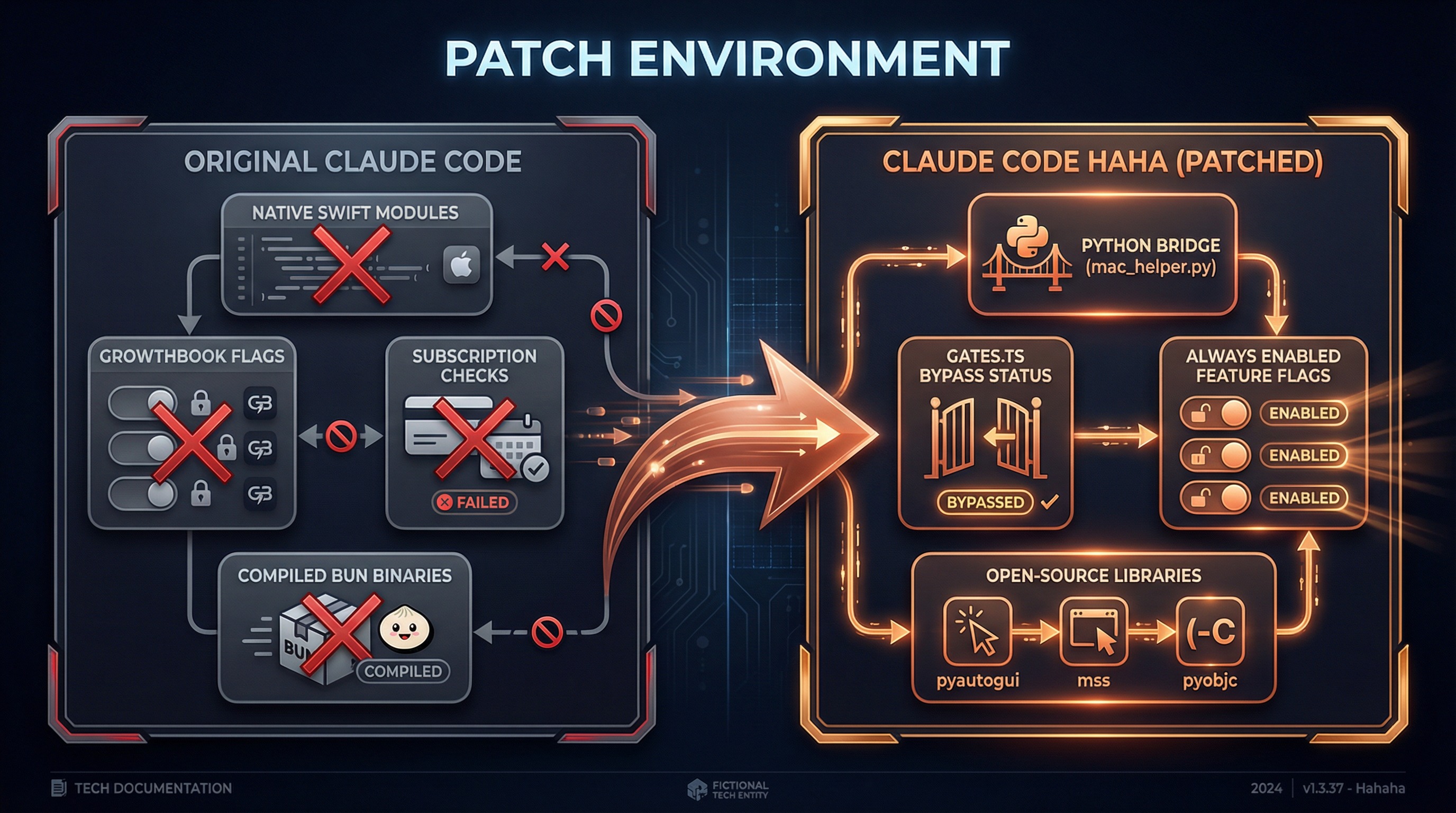
The original Claude Code's Computer Use feature (internal codename Chicago) depends on three components that are not publicly available:
| Component | Purpose | Availability |
|---|---|---|
@ant/computer-use-swift | Screenshots, display enumeration | Anthropic private npm package |
@ant/computer-use-input | Mouse/keyboard simulation | Anthropic private npm package |
| GrowthBook remote config | Feature flags, kill switch | Anthropic internal service |
Our approach: preserve the original MCP tool definitions and security mechanisms, only replace the execution layer and feature flag controls.
What We Changed
Original Claude Code                     CyberCode (Patched)
────────────────────                     ─────────────────────────
@ant/computer-use-swift  ──replaced──→   CyberCode Computer Use.app
@ant/computer-use-input  ──replaced──→   pyautogui + pyobjc
GrowthBook feature flags ──bypassed──→   gates.ts hardcoded return true
Subscription check (Max/Pro) ──bypassed──→ getChicagoEnabled() = true
Build macro CHICAGO_MCP  ──replaced──→   true
isDefaultDisabledBuiltin ──modified──→   returns false
What We Kept Intact
- MCP tool definitions (24 tools with their schema and parameter validation)
- 9-layer security gates (TCC permissions, app allowlist, permission tiers, pixel validation, etc.)
- App classification system (191 bundle IDs categorized with permission mappings)
- Session context management (global lock, screenshot cache, state synchronization)
- Keyboard shortcut blocklist (system-level dangerous operation interception)
Feature Flag Bypass Details
The original code uses three layers of gating to restrict Computer Use access:
// Original code (simplified)
function getChicagoEnabled(): boolean {
  // Layer 1: GrowthBook remote config
  const config = getDynamicConfig('tengu_malort_pedway')
  // Layer 2: Subscription check
  const hasSubscription = hasRequiredSubscription() // Max/Pro
  // Layer 3: Build-time macro
  return feature('CHICAGO_MCP') && config.enabled && hasSubscription
}
Our modification:
// gates.ts — our change
export function getChicagoEnabled(): boolean {
  return true  // ← all three gate layers bypassed
}Note: Sub-gates (pixelValidation, mouseAnimation, etc.) still retain the original logic and can be controlled via configuration.
2. Layered Architecture
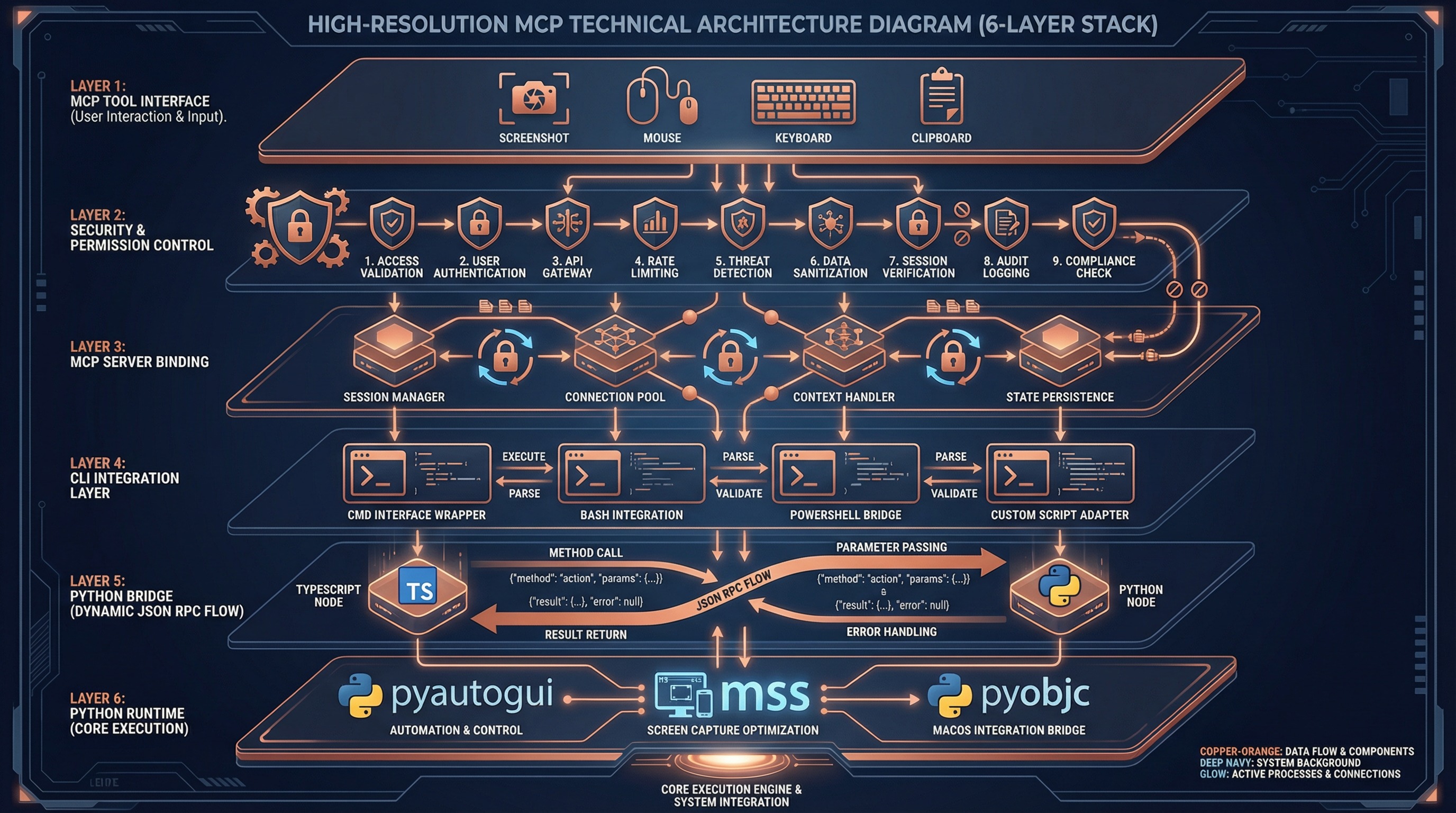
Computer Use uses a 6-layer architecture with clear responsibilities and boundaries:
┌─────────────────────────────────────────────────────────────┐
│  Layer 1 — MCP Tool Interface                               │
│  tools.ts: 24 tool schemas + parameter validation           │
│  buildComputerUseTools() → MCP Tool Definition              │
├─────────────────────────────────────────────────────────────┤
│  Layer 2 — Tool Dispatch & Security Control                 │
│  toolCalls.ts: handleToolCall() + 9 security gates          │
│  deniedApps.ts: 191 app classifications + permission tiers  │
├─────────────────────────────────────────────────────────────┤
│  Layer 3 — MCP Server Binding                               │
│  mcpServer.ts: session context + global lock + screenshot   │
│  bindSessionContext() → per-call overrides                  │
├─────────────────────────────────────────────────────────────┤
│  Layer 4 — CLI Integration                                  │
│  wrapper.tsx: permission dialogs + state read/write         │
│  setup.ts: MCP config initialization                        │
│  gates.ts: feature flags (bypassed)                         │
├─────────────────────────────────────────────────────────────┤
│  Layer 5 — Hybrid Bridge Routing                    [PATCH] │
│  macOS/Linux capture → native helper; input → Python       │
│  Windows capture and input → Python Bridge                 │
├─────────────────────────────────────────────────────────────┤
│  Layer 6 — Platform Execution                       [PATCH] │
│  macOS helper: signed capture + stable TCC identity         │
│  Linux helper: X11 / XDG Desktop Portal capture             │
│  mac / win / linux_helper.py: input, windows, fallback      │
└─────────────────────────────────────────────────────────────┘
Layers marked [PATCH] are our replaced/new code. All other layers are preserved from the original Claude Code.
Why This Layering?
| Layer | Source | Reusability |
|---|---|---|
| Layer 1-2 | vendor/computer-use-mcp/ | Platform-agnostic, reusable for Electron, Web hosts |
| Layer 3 | vendor/computer-use-mcp/ | Platform-agnostic, standard MCP protocol |
| Layer 4 | utils/computerUse/ | CLI-specific, bound to app state |
| Layer 5-6 | utils/computerUse/ + runtime/ + desktop/computer-use-{macos,linux}/ | Native macOS/Linux capture plus cross-platform Python input |
3. MCP Tool Layer
24 Tools Overview
Computer Use exposes 24 tools to the model via MCP (Model Context Protocol):
| Category | Tools | Permission Tier |
|---|---|---|
| Permission | request_access, list_granted_applications | None required |
| Screenshot | screenshot, zoom | read |
| Mouse Click | left_click, double_click, triple_click | click |
| Mouse Advanced | right_click, middle_click, left_click_drag | full |
| Mouse Move | mouse_move, cursor_position, scroll | click |
| Mouse Low-level | left_mouse_down, left_mouse_up | full |
| Keyboard | type, key, hold_key | full |
| Application | open_application, switch_display | full |
| Clipboard | read_clipboard, write_clipboard | full |
| Batch | computer_batch | Inherits from sub-operations |
| Wait | wait | None required |
Coordinate System
The model interacts with the screen through two coordinate modes:
pixels mode (default):
  Model sees screenshot size (1176 x 784)
  Model outputs coordinate [588, 392]
  scaleCoord() conversion:
    x_logical = (588 * displayWidth / 1176) + originX
    y_logical = (392 * displayHeight / 784) + originY

normalized_0_100 mode:
  Model outputs coordinate [50, 50] (percentage)
  scaleCoord() conversion:
    x_logical = (50 / 100) * displayWidth + originX
    y_logical = (50 / 100) * displayHeight + originY
Screenshot dimensions are calculated by imageResize.ts to ensure:
- Long edge <= 1568 pixels
- Token budget <= 1568 (vision encoder at 28px/token)
- Aspect ratio preserved
App Classification System
deniedApps.ts precisely classifies 191 applications:
Browsers (55 bundle IDs) -> tier read
Safari, Chrome, Firefox, Arc, Edge, Opera, Brave, Vivaldi...
Reason: browser operations should use Chrome MCP, not blind clicking
Terminals (102 bundle IDs) -> tier click
Terminal, iTerm2, VS Code, Cursor, JetBrains IDEs, Xcode...
Reason: terminal operations should use Bash Tool, limited to click only
Trading (34 bundle IDs) -> tier read
Webull, Fidelity, Interactive Brokers, Binance, Kraken...
Reason: financial operations are extremely high-risk, screenshot only
Completely Blocked (policy deny list):
Netflix, Spotify, Apple Music, Kindle...
Reason: copyright compliance, rejected without permission dialog
4. Security Gate System
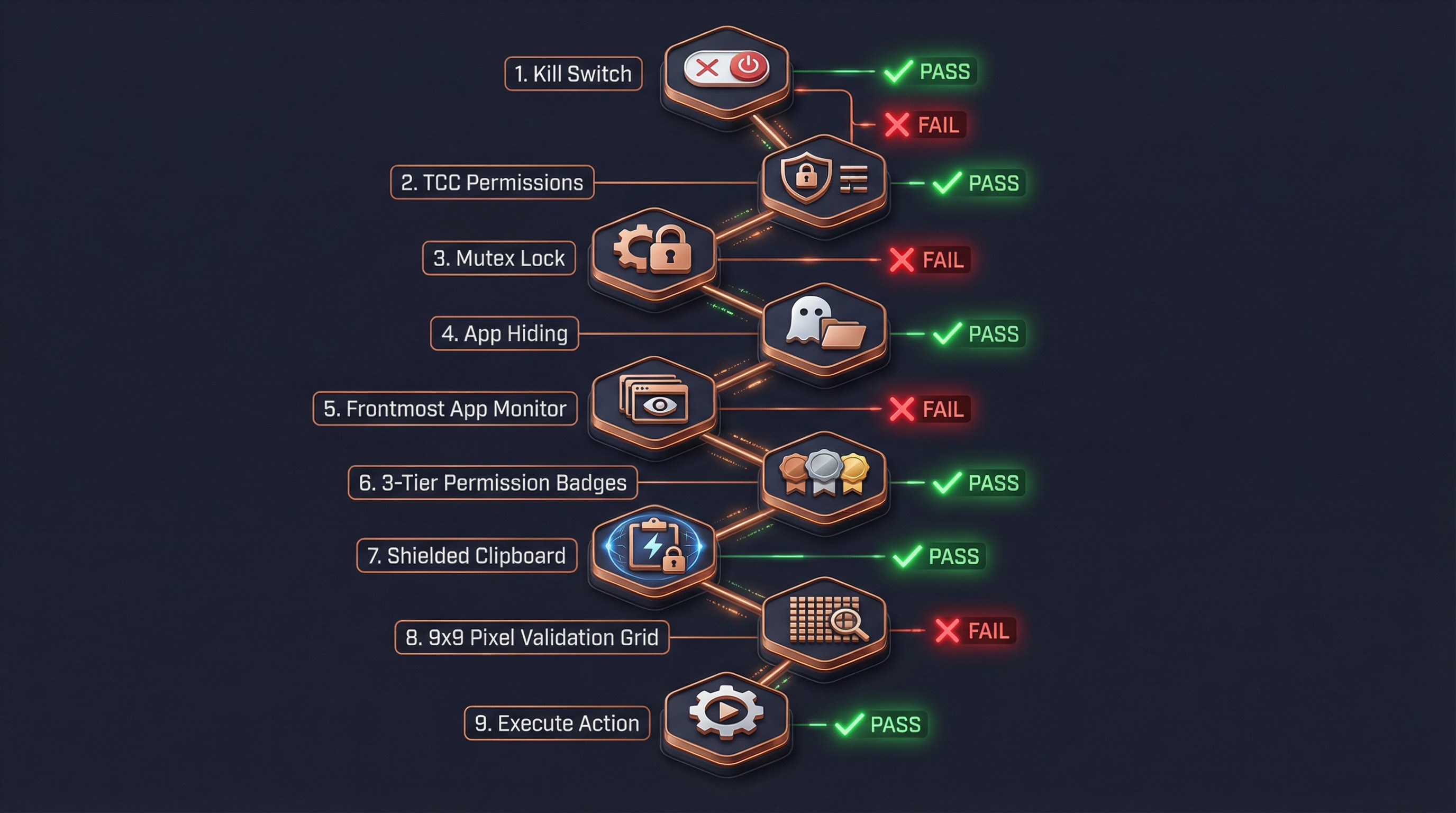
Every input action (click, keyboard, drag) must pass through 9 security gates before execution:
Gate Details
Gate 1: Kill Switch
if (adapter.isDisabled()) return errorResult("Computer Use is disabled")Reads getChicagoEnabled() — always returns true in patched version.
Gate 2: TCC Permission Check
await adapter.ensureOsPermissions()
// → Python: Accessibility check
// → CyberCode Computer Use: CGPreflightScreenCaptureAccess()
Reports error if macOS Accessibility or Screen Recording permissions are missing.
Gate 3: Global Mutex Lock
await tryAcquireComputerUseLock(sessionId)
// File lock: ~/.claude/computer-use.lock
// JSON: { sessionId, pid, acquiredAt }
Ensures only one CyberCode session can control the computer at a time. Supports stale PID recovery.
Gate 4: Hide Non-Allowlisted Apps
await executor.prepareForAction(allowlistBundleIds)
// Hide all app windows not in the allowlist
// Ensures screenshots only contain authorized apps
Gate 5: Frontmost App Check
const frontmost = await executor.getFrontmostApp()
if (!allowlist.includes(frontmost.bundleId)) {
  return errorResult("Application not authorized")
}
Even after passing the allowlist, verifies the current foreground app is authorized.
Gate 6: Permission Tier Check
Three-tier permission model:
| Tier | Allowed Operations | Prohibited Operations |
|---|---|---|
read | Screenshot viewing | Any input action |
click | Left click, scroll | Right-click, drag, keyboard input |
full | All operations | No restrictions |
function tierSatisfies(tier: CuAppPermTier, required: ActionKind): boolean {
  const order = { read: 0, click: 1, full: 2 }
  return order[tier] >= order[required]
}Anti-subversion: If permissions are insufficient, the response includes a TIER_ANTI_SUBVERSION hint to prevent the model from bypassing restrictions via AppleScript or System Events.
Gate 7: Clipboard Guard
Threat model:
1. Agent calls write_clipboard("rm -rf /")
2. Switches to Terminal (click-tier allows clicking)
3. Model clicks Terminal's paste button
4. Malicious command executedProtection:
When click-tier app becomes frontmost:
  → Save current clipboard content (stash)
  → Clear clipboard
  → Re-clear after each operation

When non-click-tier app becomes frontmost:
  → Restore original clipboard content
Gate 8: Pixel Validation (Staleness Guard)
Last screenshot              Current actual screen
┌────────────┐              ┌────────────┐
│   Button A  │              │   Dialog    │  ← UI has changed
│  [756,342]  │              │  Confirm?   │
└────────────┘              └────────────┘

Validation: sample 9x9 pixel grid at [756,342]
  → Compare last screenshot vs live screenshot pixels
  → Different → reject click + prompt to re-screenshot
→ Same → allow clickNote: In patched version, pixelValidation is off by default (hostAdapter.cropRawPatch() returns null).
Gate 9: System Shortcut Interception
keyBlocklist.ts blocks dangerous shortcuts:
| Shortcut | Dangerous Action |
|---|---|
Cmd+Q | Quit application |
Shift+Cmd+Q | Log out |
Option+Cmd+Esc | Force quit dialog |
Cmd+Tab | App switcher |
Cmd+Space | Spotlight |
Ctrl+Cmd+Q | Lock screen |
5. Hybrid Bridge Mechanism
Architecture Design
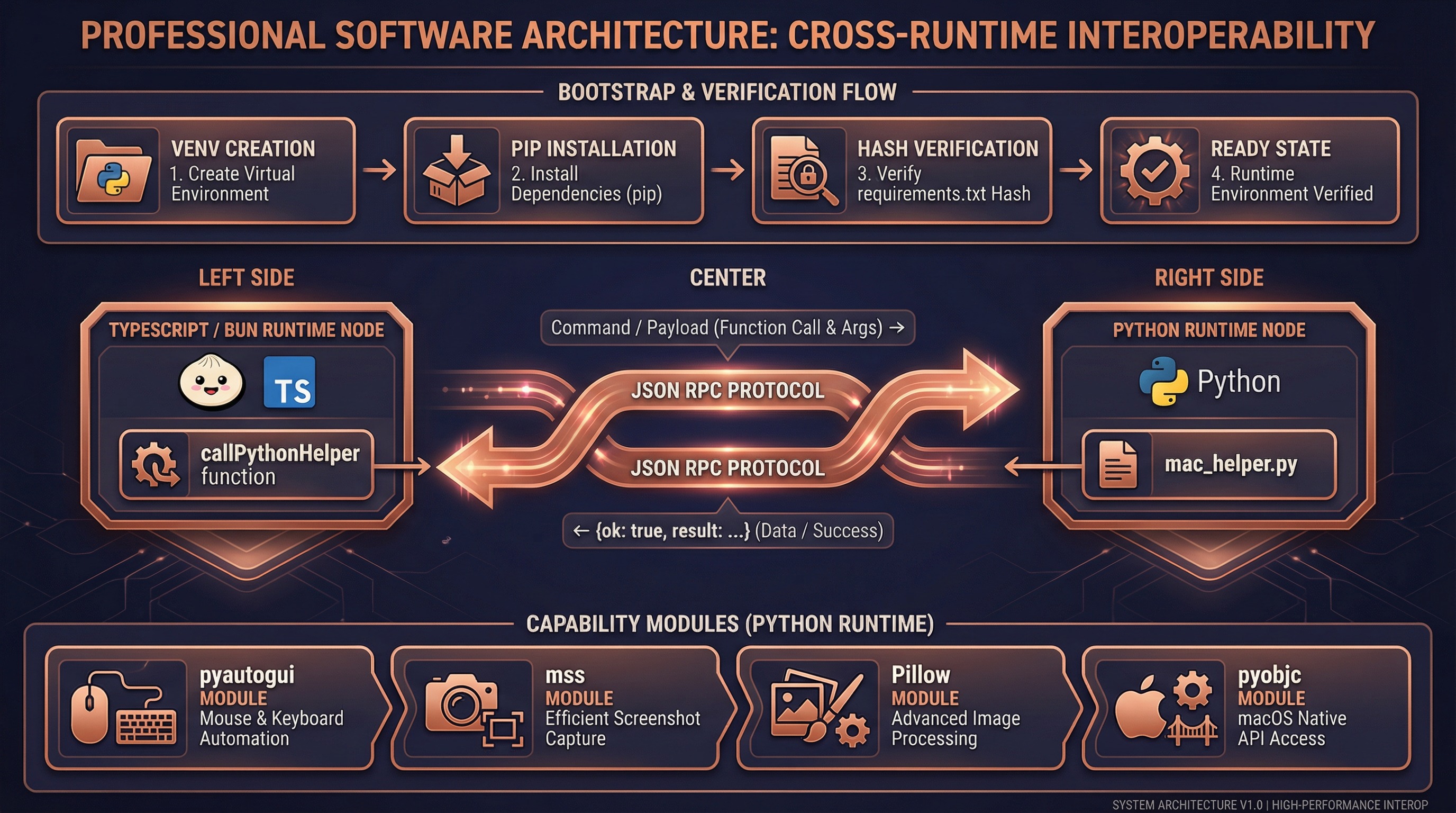
Original Claude Code uses private Swift NAPI modules. CyberCode uses a maintainable hybrid: macOS screen pixels go through a standalone signed helper; Linux screen pixels go through a bundled Rust helper that selects an X11 backend or the XDG Desktop Portal; input and app management use Python subprocess + JSON RPC. Windows capture and input remain on Python.
TypeScript (Bun)
  ├─ screenshot / zoom / display
  │    ├─ macOS helper (CoreGraphics + ImageIO)
  │    │    Bundle ID: com.cybercode.computer-use
  │    └─ Linux helper (X11 tools + XDG Desktop Portal)
  └─ click / key / app / clipboard
       └─ managed Python runtime (pyautogui + pyobjc / Win32 / X11)
At desktop startup, the platform helper is atomically installed under ~/.cyber/computer-use/. Proper macOS releases sign it with the same Apple Team as the main app, so Screen Recording permission follows a stable code identity instead of a transient Bun or Python PID. Linux bundles its helper; when Wayland uses the system portal, the desktop environment owns any required confirmation UI.
Bootstrap Flow
The first call to callPythonHelper() automatically prepares the runtime:
ensureBootstrapped()
  │
  ├─ Check the active managed runtime
  │   └─ Missing → check the legacy .runtime/venv/
  │
  ├─ Fetch the platform manifest (primary + mirrors)
  │
  ├─ Resume the platform archive download
  │
  ├─ Verify SHA-256 and extract into a staging directory
  │
  ├─ Validate Python startup and required imports
  │
  └─ Atomically write active.json and return the private Python path
Dependencies (runtime/requirements.txt):
| Library | Purpose |
|---|---|
mss | High-performance screen capture |
Pillow | JPEG encoding and image processing |
pyautogui | Mouse click, keyboard input |
pyobjc-core | macOS Objective-C bridge |
pyobjc-framework-Cocoa | NSWorkspace (app management), NSPasteboard (clipboard) |
pyobjc-framework-Quartz | CGDisplay (monitors), CGWindow (window list) |
psutil / pyperclip / screeninfo | Process, clipboard, and display integration on Windows and Linux |
Command Mapping
The native capture helpers and platform Python helpers divide the commands as follows:
| Command | Implementation | Return Value |
|---|---|---|
screenshot | Native CGDisplayCreateImage + ImageIO JPEG | {base64, width, height, displayWidth, displayHeight} |
zoom | Native CGWindowListCreateImage region capture | {base64, width, height} |
click | pyautogui.moveTo() + pyautogui.click() | true |
key | pyautogui.hotkey() / pyautogui.press() | true |
type | pyautogui.write(interval=0.008) | true |
drag | pyautogui.dragTo(duration=0.2) | true |
scroll | pyautogui.scroll() / pyautogui.hscroll() | true |
hold_key | pyautogui.keyDown() + sleep + pyautogui.keyUp() | true |
frontmost_app | NSWorkspace.frontmostApplication() | {bundleId, displayName} |
list_displays | Native CGGetActiveDisplayList() + CGDisplayBounds() | [DisplayGeometry...] |
open_app | NSWorkspace.launchApplicationAtURL_options_ | void |
read_clipboard | NSPasteboard.stringForType_() | string |
write_clipboard | NSPasteboard.setString_forType_() | void |
check_permissions | Python Accessibility + native Screen Recording preflight | {accessibility, screenRecording} |
Error Handling
# mac_helper.py unified error handling
def main():
    try:
        result = dispatch(command, payload)
        json_output({"ok": True, "result": result})
    except Exception as e:
        error_output({"ok": False, "error": {"message": str(e)}})
TypeScript side:
// pythonBridge.ts
const parsed = JSON.parse(stdout)
if (!parsed.ok) {
  throw new Error(parsed.error.message)  // → MCP tool error
}
return parsed.result
6. Screenshot-Analyze-Act Loop
A complete Computer Use interaction consists of multiple screenshot-analyze-act cycles:
Typical Interaction Flow
User: "Open NetEase Music and search for a song"

┌─ Cycle 1: Discover and open application ─────────────────┐
│                                                           │
│  Step 1: request_access                                   │
│    → Permission dialog, user authorizes allowed apps      │
│    → Set allowedApps, grantFlags                          │
│                                                           │
│  Step 2: screenshot                                       │
│    → Full screen capture → JPEG encode → base64           │
│    → Cache screenshot dimensions (lastScreenshotDims)     │
│    → Return to model                                      │
│                                                           │
│  Step 3: Model analyzes screenshot                        │
│    → "NetEase Music not on desktop, need to open it"      │
│    → Decides to call open_application                     │
│                                                           │
│  Step 4: open_application("com.netease.163music")         │
│    → Gates 1-9 all pass                                   │
│    → Python: NSWorkspace.launchApplicationAtURL_()        │
│                                                           │
└───────────────────────────────────────────────────────────┘

┌─ Cycle 2: Locate search box ─────────────────────────────┐
│                                                           │
│  Step 5: screenshot                                       │
│    → Full screen (app now open)                           │
│    → Update lastScreenshotDims                            │
│                                                           │
│  Step 6: Model analyzes screenshot                        │
│    → Vision identifies search box at (756, 342)           │
│    → Decides to click search box                          │
│                                                           │
│  Step 7: left_click({coordinate: [756, 342]})             │
│    → Gate 4: Hide non-allowlisted apps                    │
│    → Gate 5: Frontmost is NetEase Music ✓                 │
│    → Gate 6: tier=full >= click ✓                         │
│    → scaleCoord(756, 342) → screen coordinates            │
│    → Python: pyautogui.click(x_logical, y_logical)        │
│                                                           │
└───────────────────────────────────────────────────────────┘

┌─ Cycle 3: Type search query ─────────────────────────────┐
│                                                           │
│  Step 8: type({text: "my favorite song"})                 │
│    → Gate 6: tier=full >= keyboard ✓                      │
│    → Python: pyautogui.write("...", interval=0.008)       │
│                                                           │
│  Step 9: screenshot                                       │
│    → Confirm search results appeared                      │
│                                                           │
│  Step 10: left_click({coordinate: [...]})                 │
│    → Click target song                                    │
│                                                           │
└───────────────────────────────────────────────────────────┘
Coordinate Conversion
What the model sees vs actual screen are different coordinate spaces:
Physical screen (2560 x 1600, Retina 2x)
  ├─ Logical size: 1280 x 800
  └─ Physical pixels: 2560 x 1600

After imageResize:
  ├─ Scaled size: 1176 x 735 (≤1568px budget)
  └─ This is the screenshot size the model "sees"

Model outputs coordinate: [588, 368] (in image space)

scaleCoord conversion:
  x_logical = (588 / 1176) * 1280 + originX = 640
  y_logical = (368 / 735) * 800 + originY = 400

Python executes:
  pyautogui.moveTo(640, 400)  ← logical coords (macOS handles Retina)
Screenshot Cache & State Sync
bindSessionContext closure
  │
  ├─ lastScreenshot (in-memory)
  │   ├─ base64: JPEG data (for pixel validation)
  │   ├─ width/height: model-visible dimensions
  │   └─ displayWidth/displayHeight/originX/originY: display geometry
  │
  └─ AppState.computerUseMcpState (persisted)
      ├─ allowedApps: AppGrant[]        — authorized app list
      ├─ grantFlags: {...}              — clipboard/system shortcut permissions
      ├─ selectedDisplayId?: number     — selected display
      ├─ lastScreenshotDims?: {...}     — screenshot geometry (survives restart)
      └─ hiddenDuringTurn?: Set<string> — apps hidden this turn
7. Key Source File Index
vendor/computer-use-mcp/ (Original Code Layer)
| File | Lines | Responsibility |
|---|---|---|
types.ts | 622 | Permission model, session context, all type definitions |
tools.ts | 707 | 24 MCP tool schemas and parameter validation |
toolCalls.ts | 1600+ | Core: tool dispatch, 9 security gates, permission flow |
deniedApps.ts | 554 | 191 app classifications (browser/terminal/trading) and permission mappings |
sentinelApps.ts | 44 | Sensitive app warning labels (shell/filesystem/system_settings) |
mcpServer.ts | 314 | MCP server factory, session context binding, global lock |
pixelCompare.ts | 172 | Click target pixel validation (staleness guard) |
imageResize.ts | 109 | Screenshot dimension calculation (API image transcoder) |
keyBlocklist.ts | 154 | System shortcut interception (Cmd+Q, Cmd+Tab, etc.) |
executor.ts | 101 | ComputerExecutor interface definition |
subGates.ts | 20 | Feature flag sub-gate presets |
utils/computerUse/ (CLI Adaptation Layer)
| File | Lines | Responsibility | Patched? |
|---|---|---|---|
executor.ts | 231 | ComputerExecutor hybrid bridge implementation | Yes, rewritten |
runtimeManager.ts | — | Platform runtime download, resume, verification, and atomic activation | Yes, new |
pythonBridge.ts | — | Native capture / Python input routing and runtime compatibility | Yes, new |
nativeCapture.ts | — | macOS/Linux helper path resolution, JSON RPC, and fallback policy | Yes, new |
hostAdapter.ts | 54 | HostAdapter implementation (permission checks, flag reading) | Partially |
gates.ts | 51 | GrowthBook feature flags (getChicagoEnabled bypass) | Yes, modified |
wrapper.tsx | 300+ | Session context construction, permission dialogs, lock management | Unchanged |
setup.ts | 54 | MCP config initialization | Unchanged |
computerUseLock.ts | 216 | Global file lock (~/.claude/computer-use.lock) | Unchanged |
common.ts | 62 | Constants (server name, bundle ID) | Unchanged |
cleanup.ts | — | Turn-end cleanup (app restore, clipboard restore) | Unchanged |
toolRendering.tsx | — | Tool result UI rendering | Unchanged |
runtime/ (Python Runtime)
| File | Lines | Responsibility | Patched? |
|---|---|---|---|
mac_helper.py | 660 | macOS input, app, and window interaction | Yes, new |
win_helper.py | — | Windows capture, input, app, and window interaction | Yes, new |
linux_helper.py | — | Linux X11/XWayland input and capture fallback | Yes, new |
requirements*.txt | — | Platform Python dependency declarations | Yes, new |
desktop/computer-use-macos/ (Native Capture Helper)
| File | Responsibility |
|---|---|
main.swift | Display enumeration, JPEG/PNG capture, permission requests |
Info.plist | Stable com.cybercode.computer-use bundle identity |
desktop/computer-use-linux/ (Native Capture Helper)
| File | Responsibility |
|---|---|
src/main.rs | X11 capture backend discovery, XDG Desktop Portal calls, cropping, and encoding |
Cargo.toml | Linux-native dependencies including ashpd and image |
8. Design Trade-offs
Why a Hybrid Bridge?
| Dimension | Private Swift NAPI | CyberCode Hybrid Bridge |
|---|---|---|
| Performance | ~0ms (in-process call) | Native capture is millisecond-scale; Python input starts in ~50-100ms |
| Readability | Private implementation | Small public Swift helper plus readable Python |
| Modifiability | Private NAPI ABI | Buildable Swift CLI and editable .py files |
| Dependencies | Specific Bun version NAPI | System CoreGraphics plus managed CPython |
| Cross-platform | macOS only | Native macOS/Linux capture with Windows/Python compatibility |
| User experience | Imperceptible | Imperceptible (model thinking takes 2-5s) |
Conclusion: Frequent screenshots use the lightweight native helper while the cross-platform input layer stays maintainable. Python input startup is negligible next to model analysis time.
Approaches We Tried But Abandoned
Approach 1: Extract native .node modules
- Successfully extracted
computer-use-swift.node(ARM64 424KB) from the Claude Code binary - Synchronous methods worked, but Swift async method continuations never resumed
- Root cause: .node files compiled for Claude Code's built-in Bun, incompatible with user's Bun version
Approach 2: Empty stub packages
- Code compiled but all operations threw errors — no actual execution capability
Related Documentation
- Computer Use Guide — Usage, quick start, environment variables